
Room is one of BuildingComponent classes. BuildingComponents (Rooms, Storeys, Facades, RoofInner etc) make up a Building.
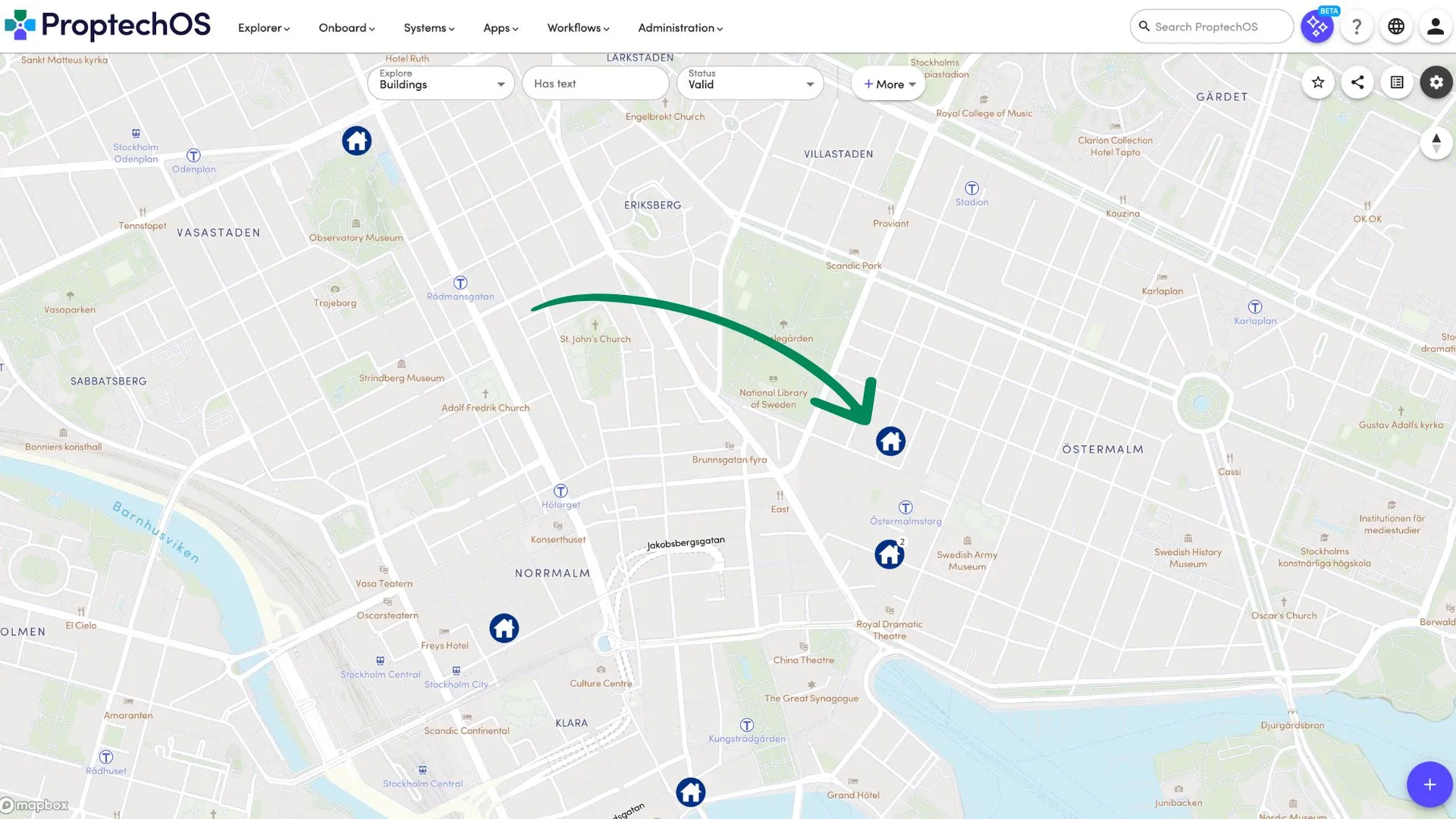
1. Select the Building on the map where you want to create a Room.
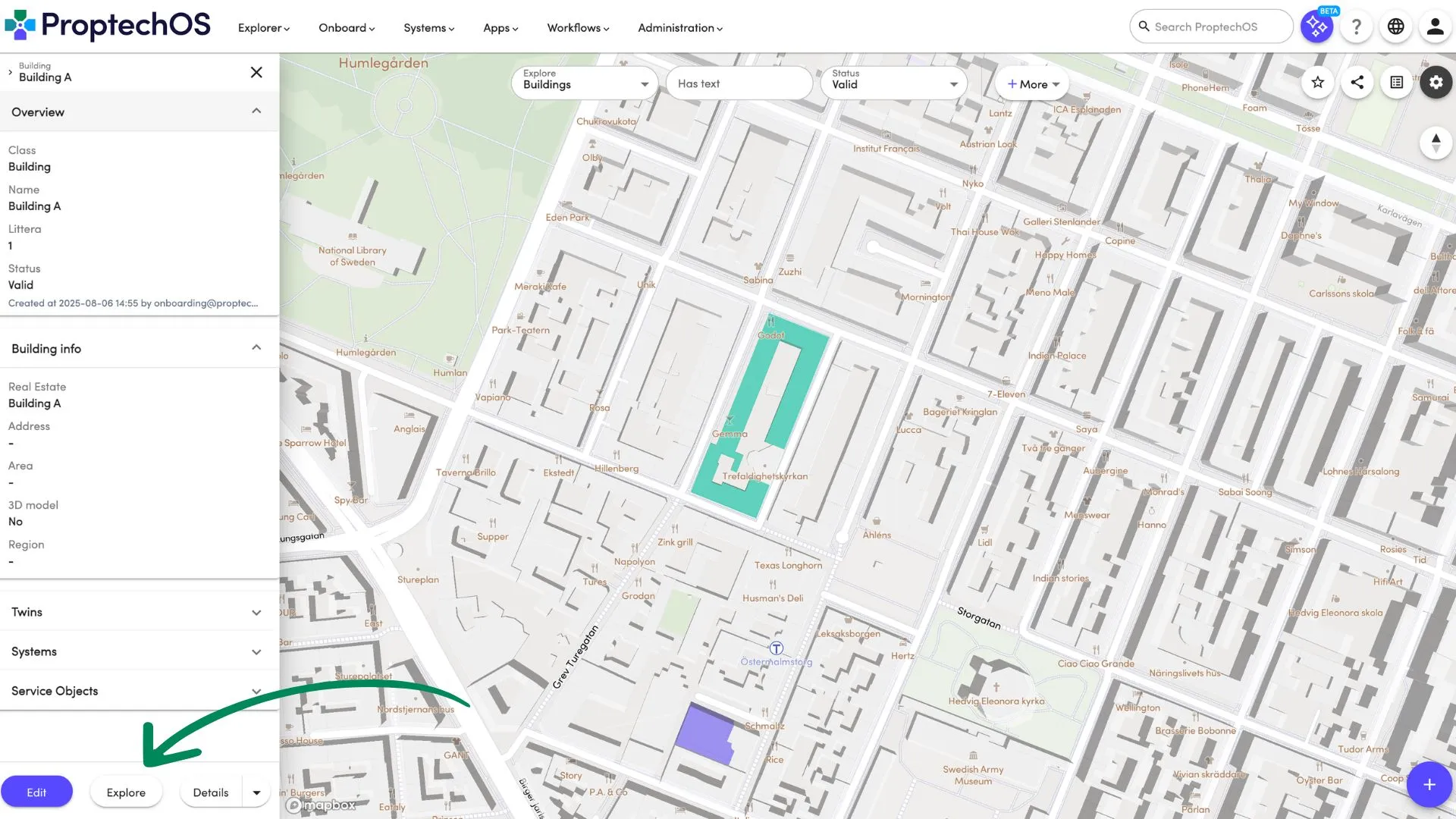
2. Click on “Explore” the building to see the Storeys of the building.
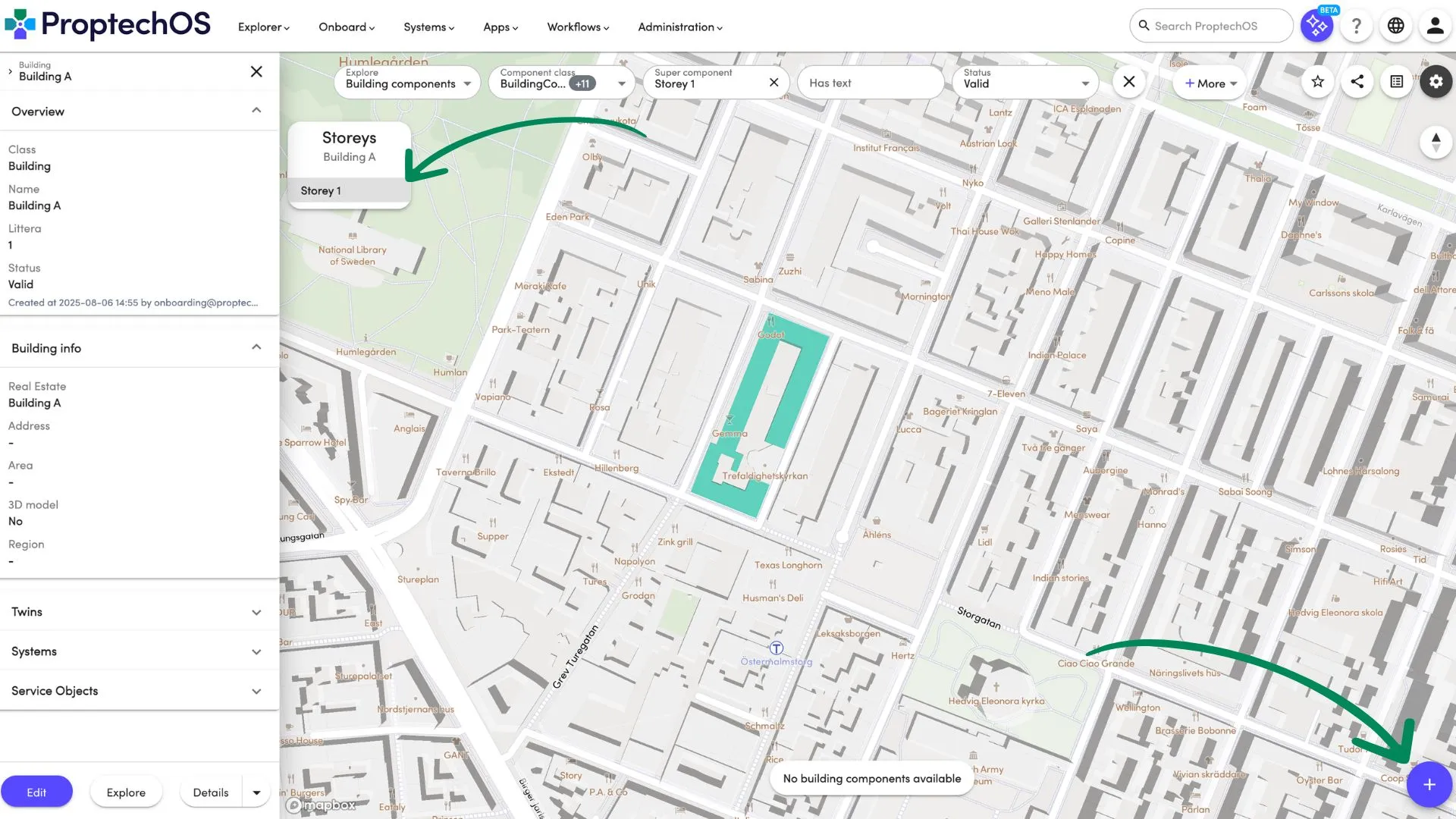
3. Select the Storey where you want to create a Room and click the “+” sign button to create a Room.
- Provide a Popular Name
Please provide a name for your new Room. You will be able to find the Room by this name. If you also have a formal or technical designation for the room (e.g a room number) you can add that to the “Littera” field.
- Select a Building
By default, it is populated with previously selected Buildings, but it can be changed.
- Select a Storey
By default, it is populated with previously selected Storey, but it can be changed.
- Fill in local coordinates
The local coordinates indicate the location of the Room in relation to 0 point which is usually marked on the blueprints or it could be the left bottom corner of the Building. We have provided default Local Coordinates for you, but feel free to change.
- Select a Room Type
Room Types make it easier to filter or group Rooms.
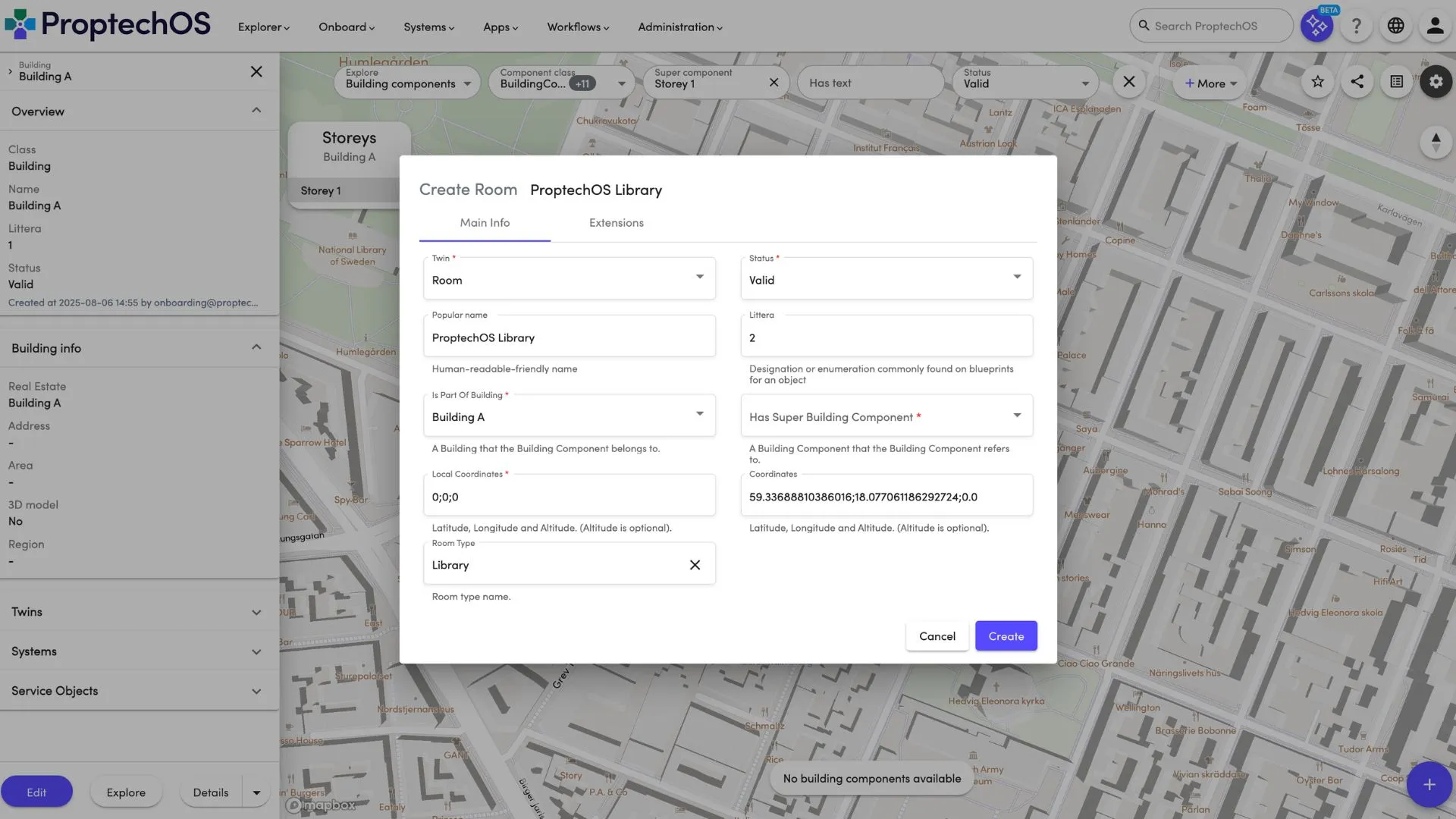
5. Click the “Create” button and the room will be created.